
How to add a new HTML email signature in the iPhone or iPad
Last Updated On: 2025-12-30
Want to add an email signature in the Mail app on iPhone/iPad/iOS?
Copy the signature from the email signature generator page on your iPhone to the clipboard and paste it into the iPhone/iPad Mail app signature field.
Below you can see the steps with screenshots of how to do it:
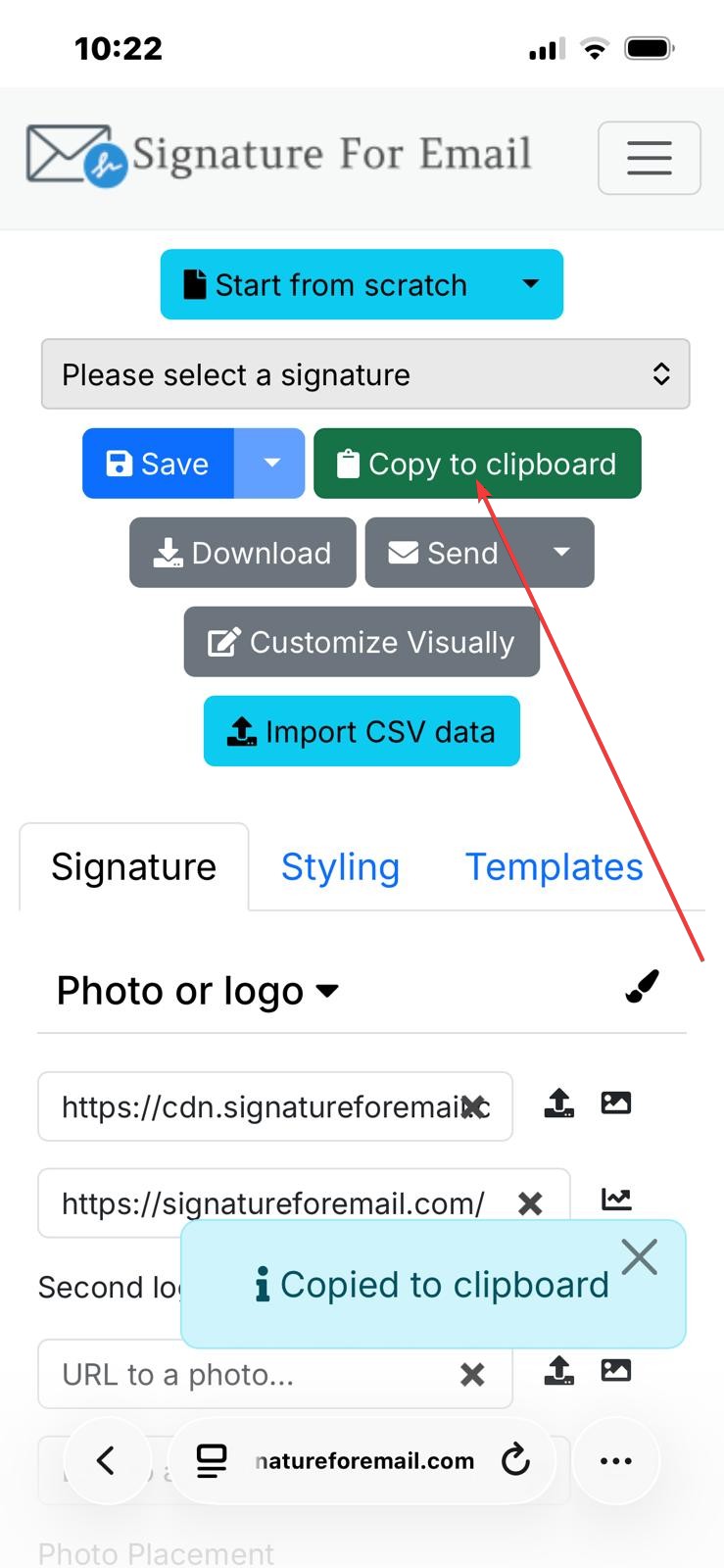
- Click the green Copy to clipboard button. Optionally, sign in to your account on signatureforemaill.com and select a saved signature you want to add to your email client and then click the green Copy to clipboard button:
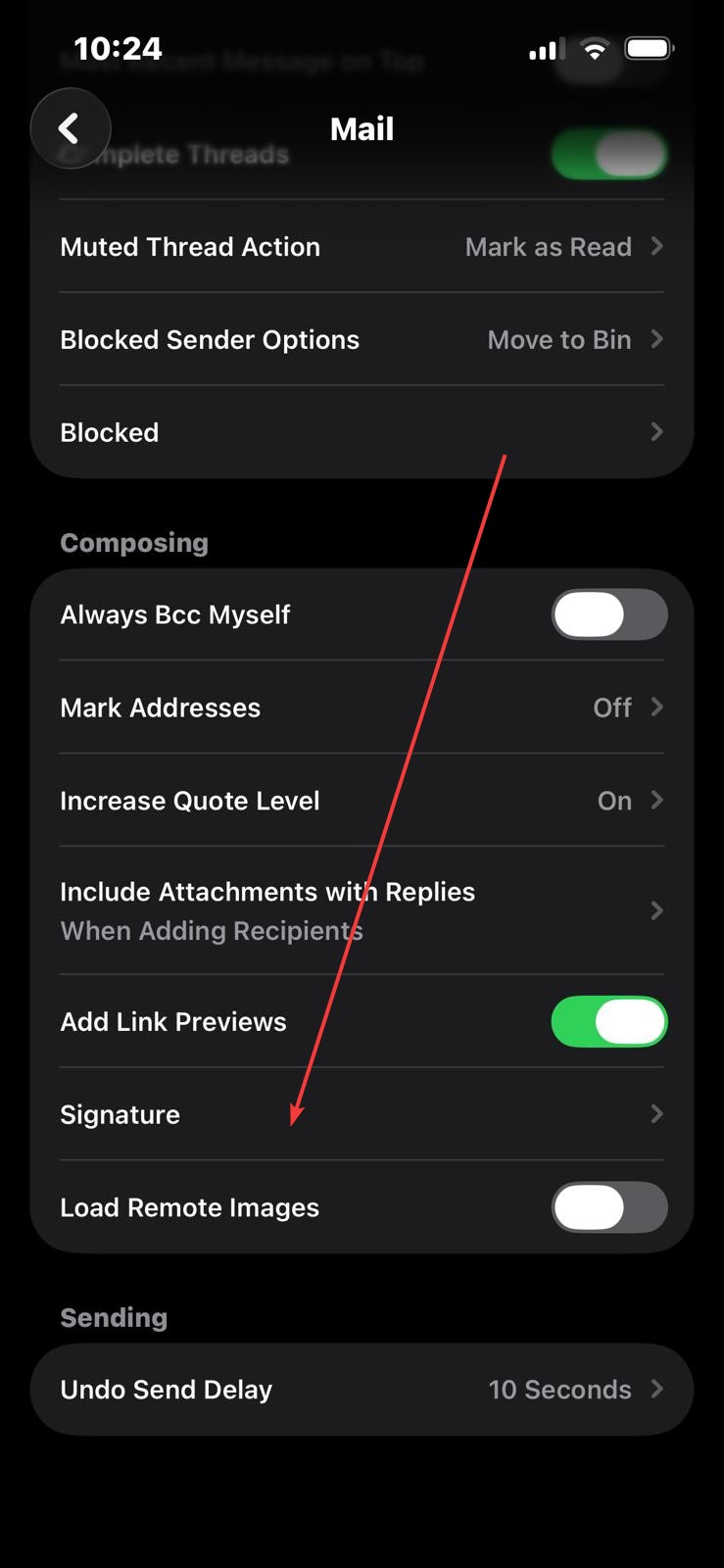
- Open the Mail app from the iPhone Settings and tap on the Signature field at the bottom of the settings:
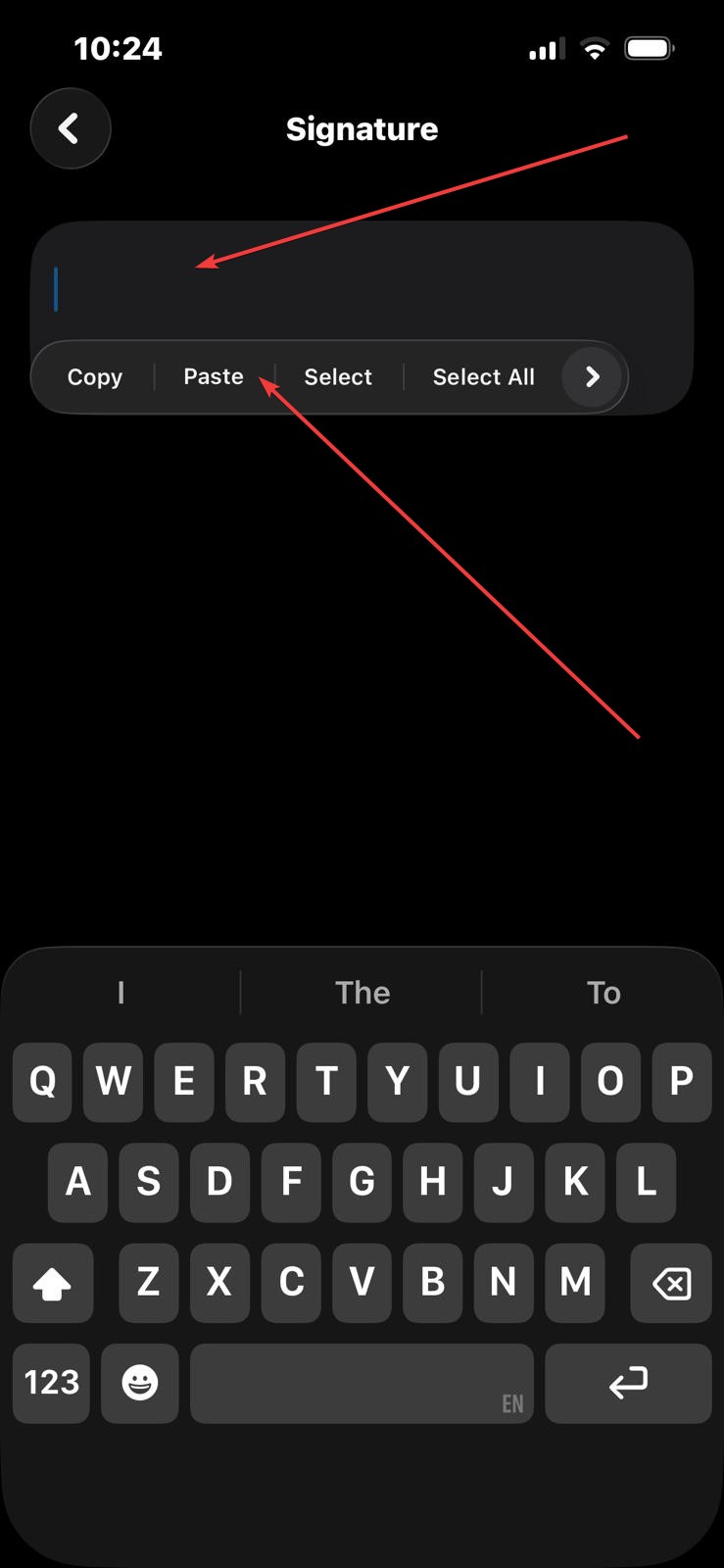
- Tap and hold the signature text field until you see the option to paste the signature from the clipboard. Then tap 'Paste', and you should see the signature:
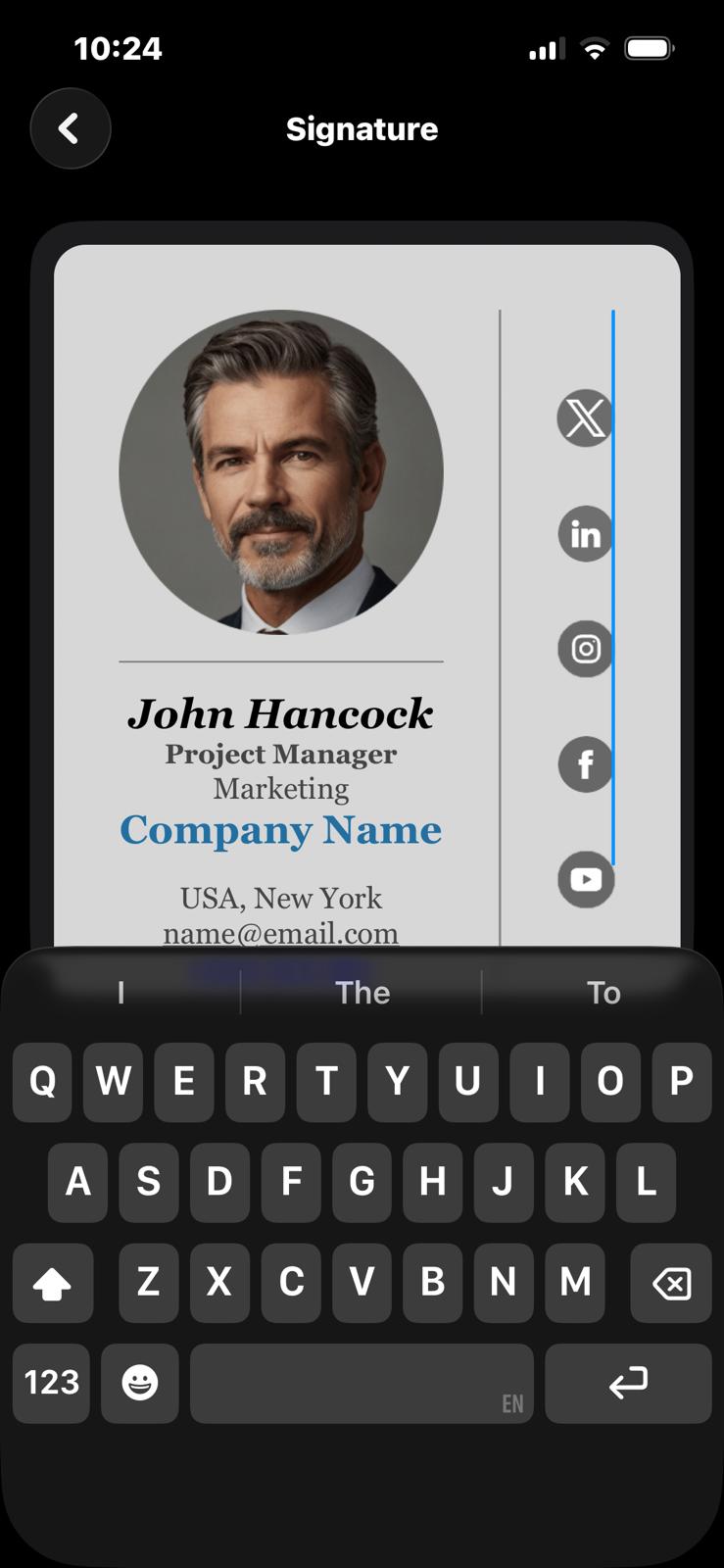
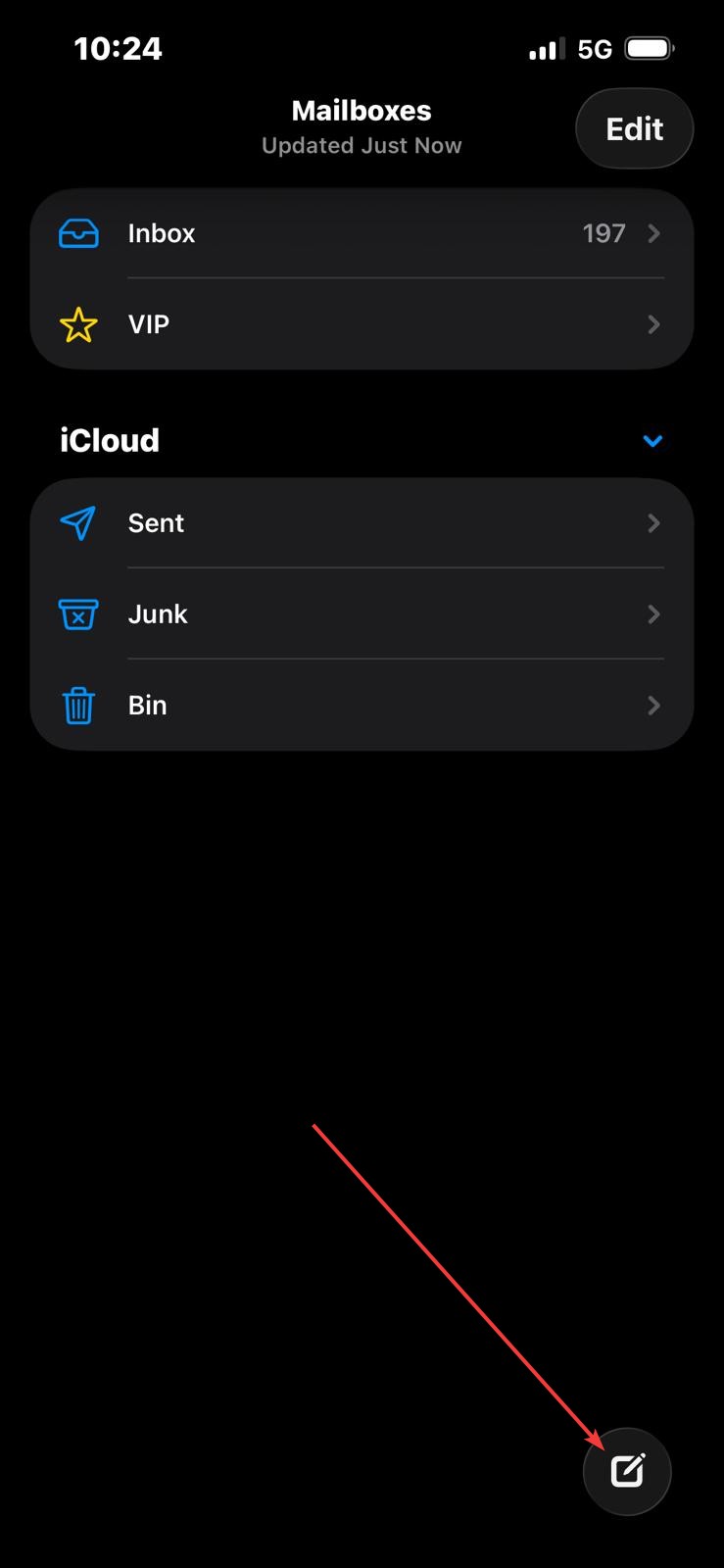
- Now go to the Mail app on iPhone and create a new email. If you see your signature, then all steps were done correctly.

Want to add an email signature in Gmail on iPhone or iPad?
If you use the Gmail app on your iPhone or iPad, Gmail will use the signature you set in the web app by default. Here you can read how to set up a signature in Gmail in your browser. The Gmail app on iPhone has an option to set a signature, but you can only enter a simple text version, no photos or links.
Want to add an email signature in Outlook on iPhone or iPad?
Want to set up a signature in the Outlook app on your iPhone or iPad? Just like with the Mail app, paste your signature from the clipboard (step 1) into the Outlook signature. You can access this setting by clicking on the settings icon in the Outlook app, then on Signature, where you will see a field to paste your signature (as in step 3 for the Mail app).