How to add an HTML email signature in the Outlook Mobile App
Last Updated On: 2026-01-02
Want to add an email signature in Outlook on iPhone or Android?
Basically, you just copy the signature from the email signature generator on your mobile phone to the clipboard and paste it into the mobile Outlook app signature field.
Outlook mobile does not allow pasting raw HTML code as text. However, it does support "rich text" signatures when you paste a rendered signature, which is exactly how signatures created with SignatureforEmail.com work.
Below you can see the steps with screenshots of how to do it:
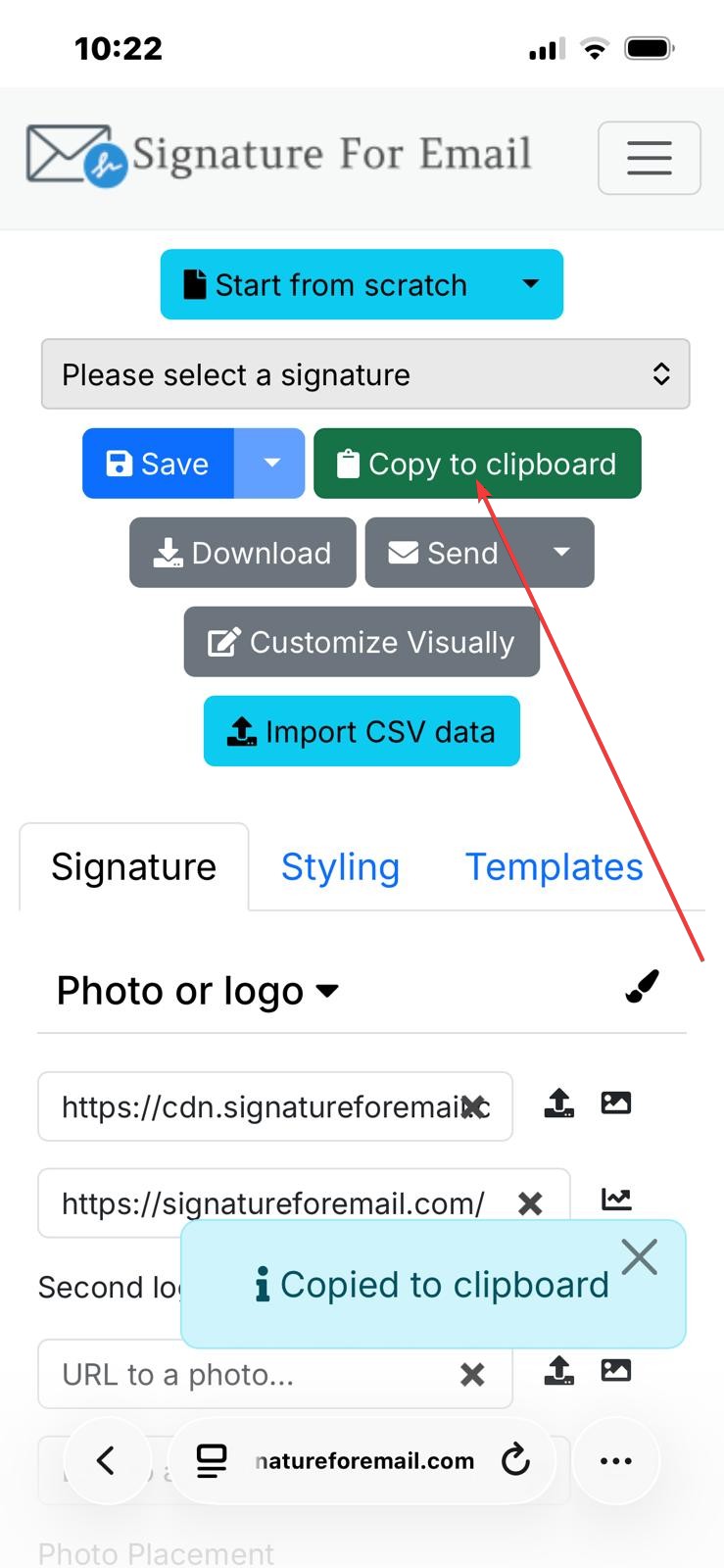
- Click the green Copy to clipboard button. Optionally, you may have to sign in to your account on signatureforemaill.com and select a saved signature you want to add to your Outlook email client.
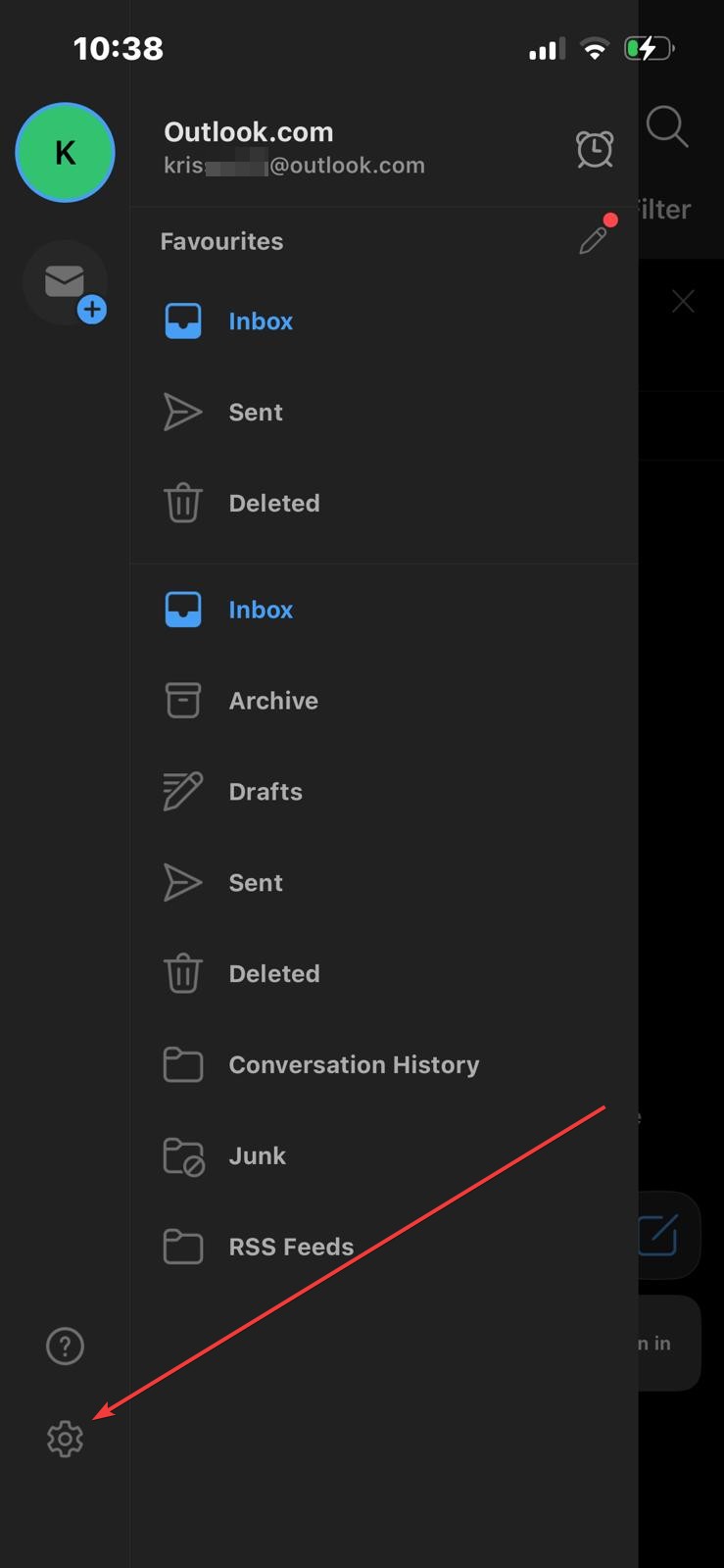
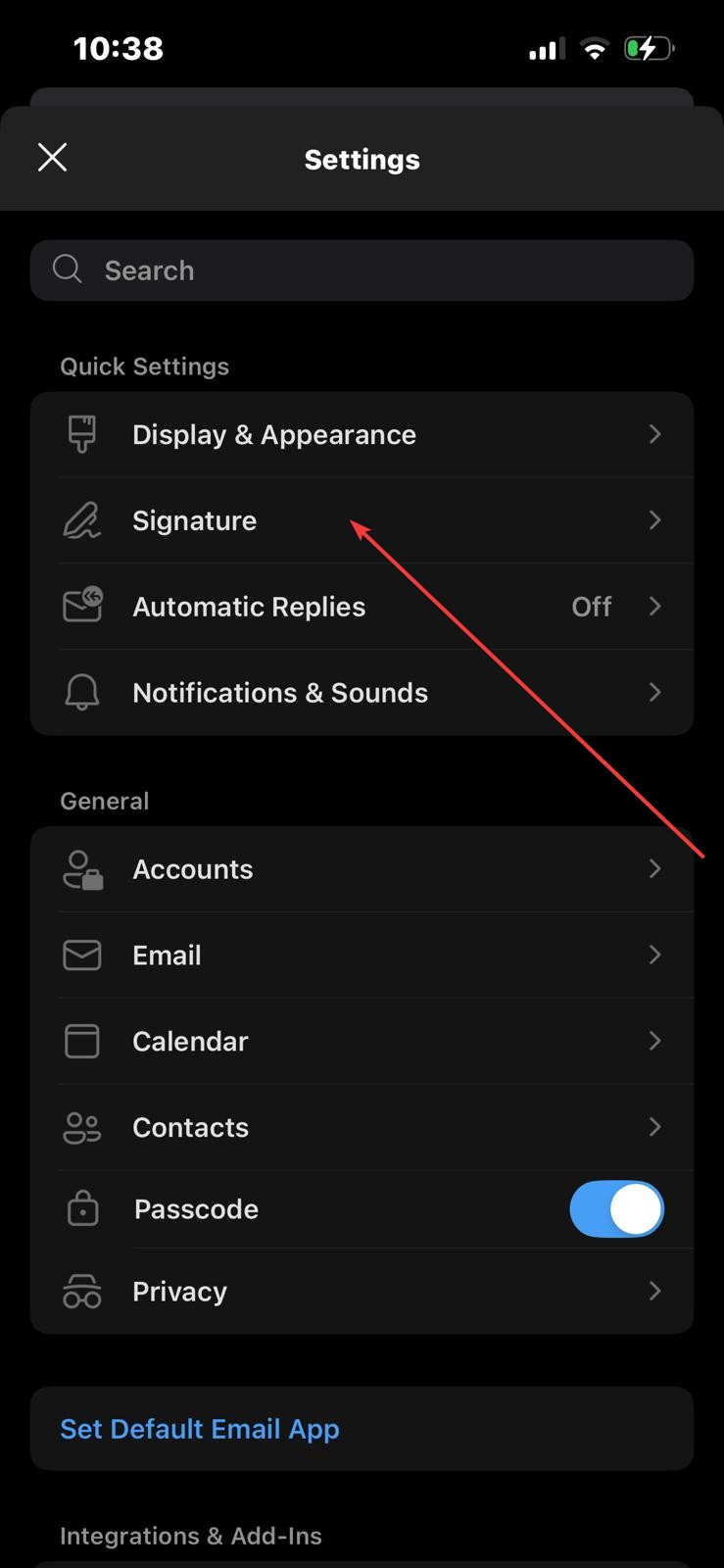
- Open the Outlook app on your phone (please note that screenshots are taken on an iPhone iOS, but it looks the same on Android phones as well). Tap the Outlook app icon located in the top left corner of that app to see the left side menu. Go to Settings by tapping the gear icon, like in the first screenshot, and then tap on the Signature text item (second screenshot):
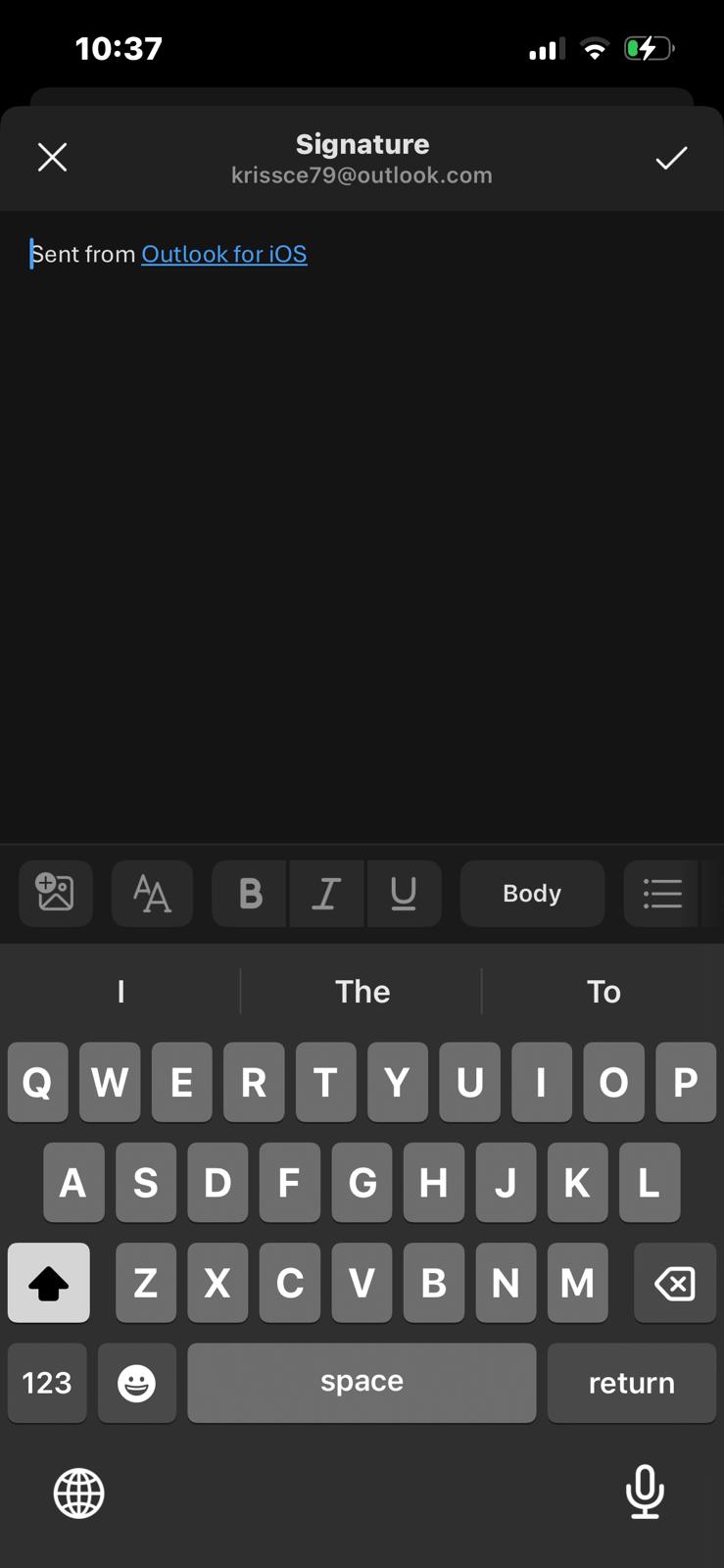
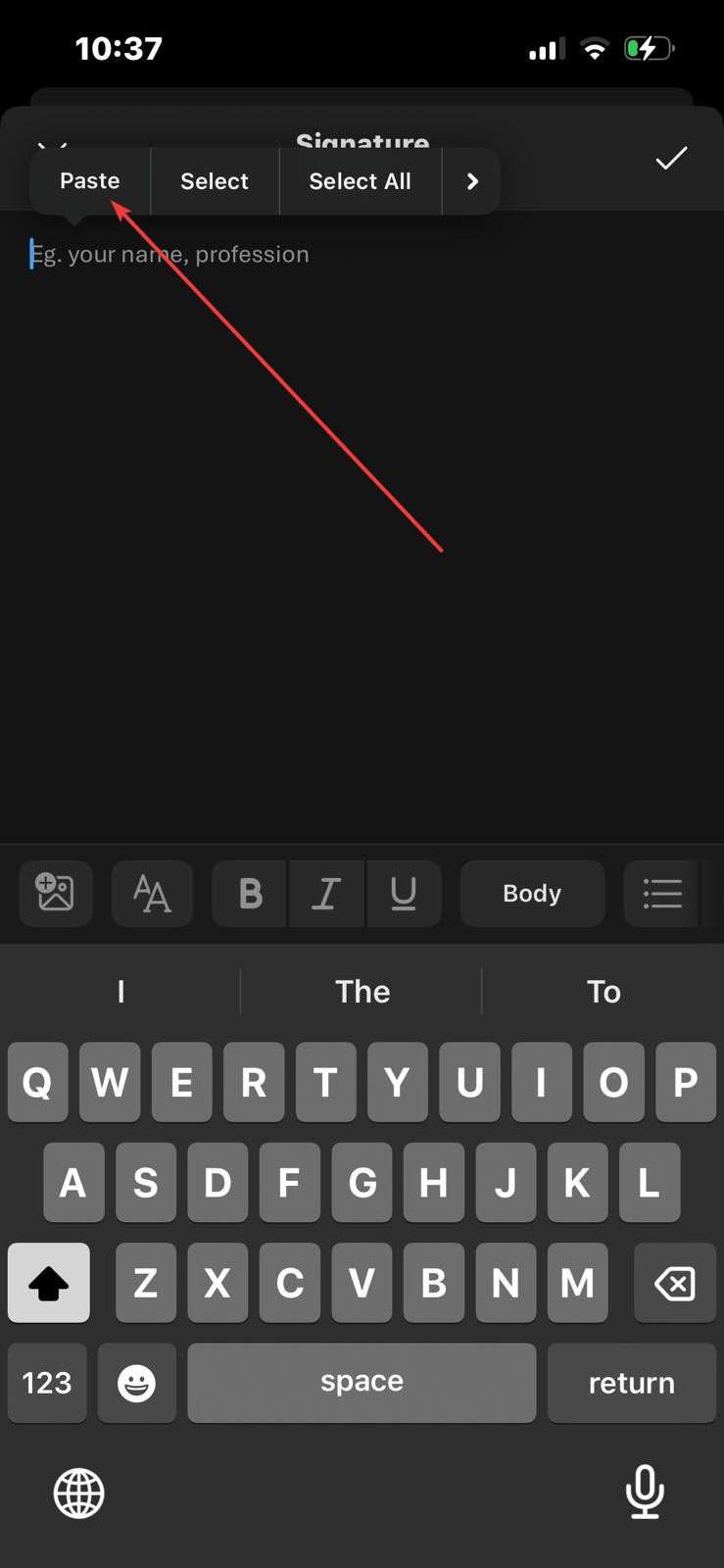
- Remove the default Outlook signature text and tap and hold the signature text field until you see the option to paste the signature from the clipboard. Then tap 'Paste', and you should see the signature:

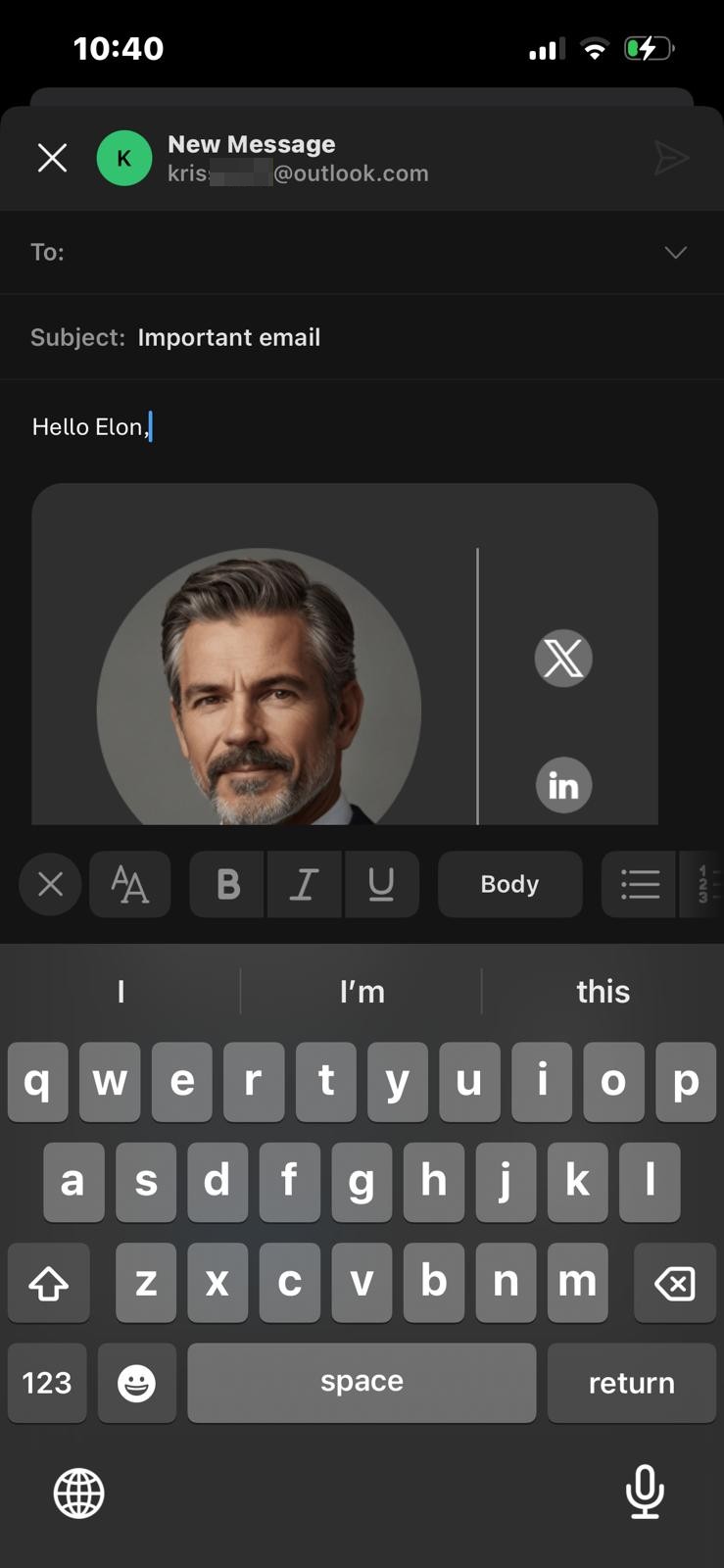
- Now, create a new email in the Outlook app. If you see your signature, then all steps were done correctly.