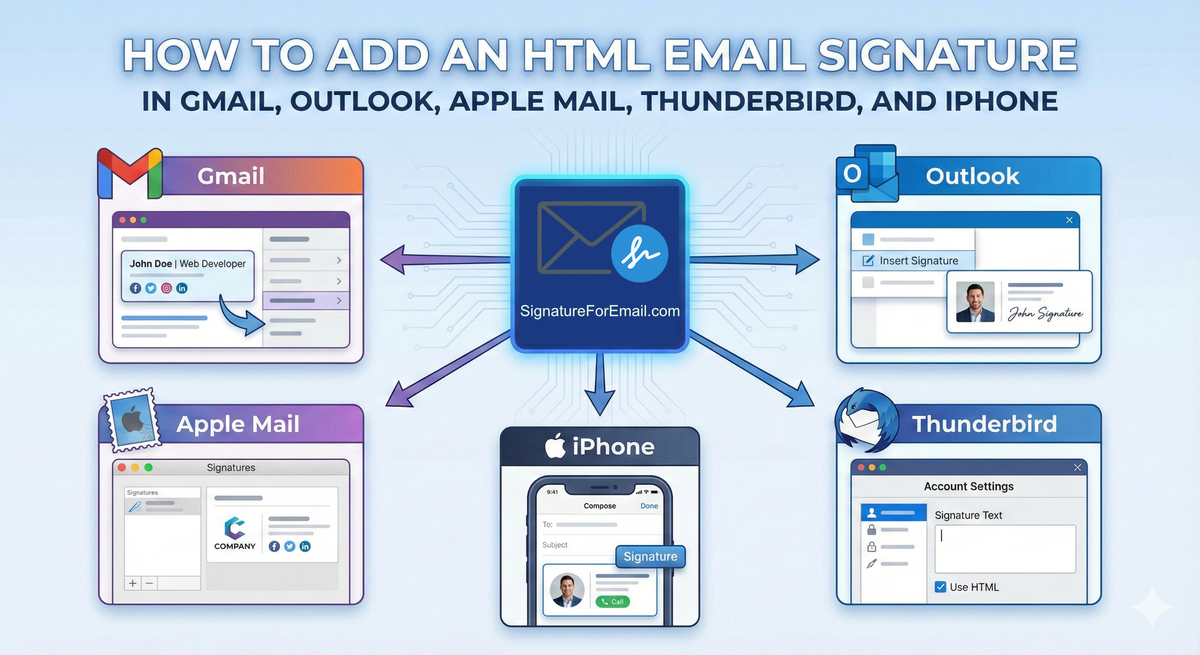
 A clean, well-built email signature does a lot of quiet work for you. It reinforces your brand, makes your emails feel more professional, and helps people reach you without hunting for your details. The trick is getting that signature into the apps you use every day.
Most email clients handle HTML signatures just fine—you just need to know where to paste the code and which switches to flip.
Let’s go through the most common ones. Nothing complicated. Just the steps that matter.
Gmail
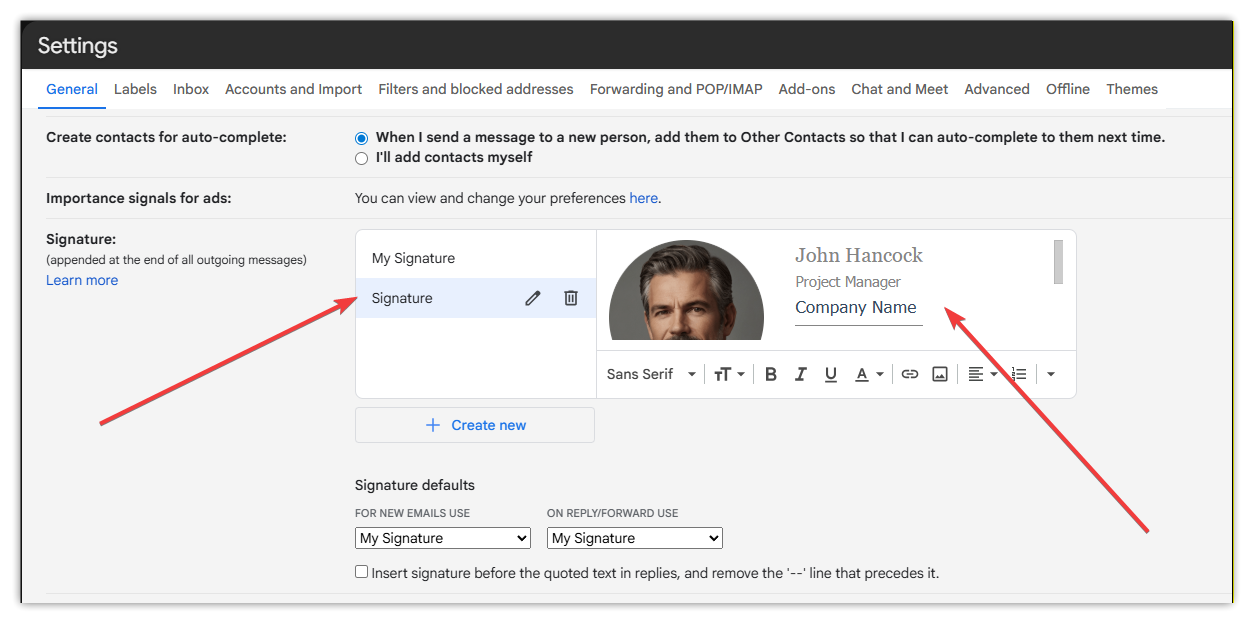
Gmail is simple once you know where the editor lives.
Open Gmail in your browser and head to Settings. Not the small quick panel—the full settings page. Scroll until you find “Signature.” There’s a small editor box.
Paste your signature HTML right into it. Gmail will show a visual preview. If your images look off, it’s usually because the links aren’t public. Make sure your logo or icons are hosted online and accessible.
Save, then send yourself a test email. Gmail can be a little aggressive about rewriting HTML, but most signatures hold their shape.
Although the Gmail mobile app doesn’t support full HTML signatures directly, you can still use them with a simple workaround. First, add an email signature in the Gmail web app on a computer. If you leave the signature field empty in the Gmail mobile app, it will use the signature set in the web version of Gmail.
Outlook Web (Outlook.com / Office 365)
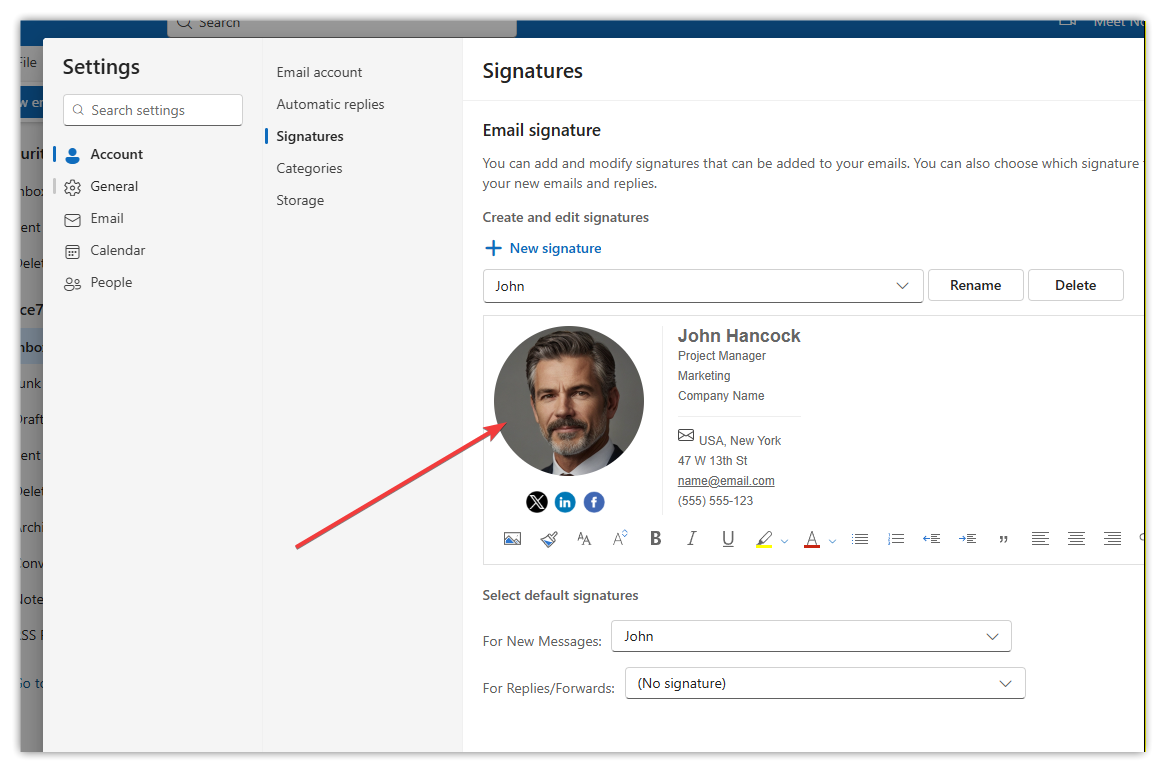
Go to Settings → Account → Signatures. The signature box supports HTML pasting. Just paste your signature code in, check the preview, and save.
It behaves more like Gmail, so your signature should look almost identical to what you created elsewhere.
Outlook Classic (Desktop)
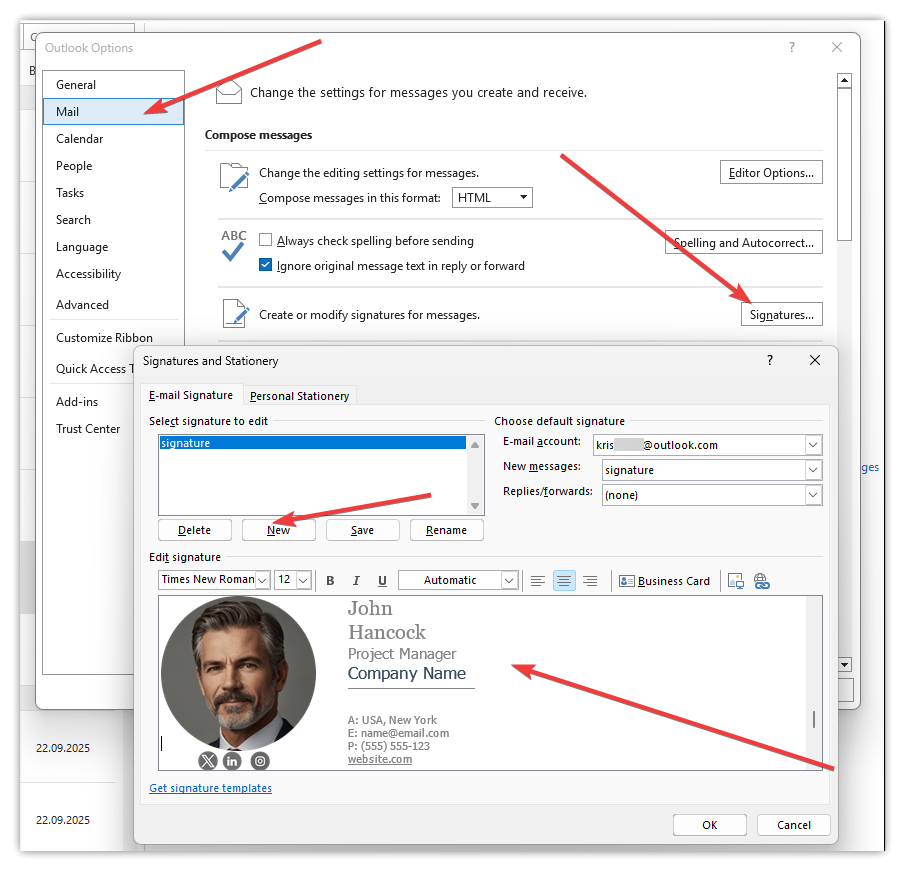
Outlook feels old-school sometimes, and its signature system matches that vibe. It doesn’t let you paste raw HTML directly into the interface. The workaround is easy, though.
Create a new message. Switch to the message body. Paste your rendered signature — not the code — into the email. Outlook respects the styling that way. Then highlight it and save it as a new signature.
If your signature uses remote images, Outlook may prompt security warnings. You can whitelist your domain, but some recipients will still see the “download images” banner. That’s normal. Everyone gets that banner from time to time.
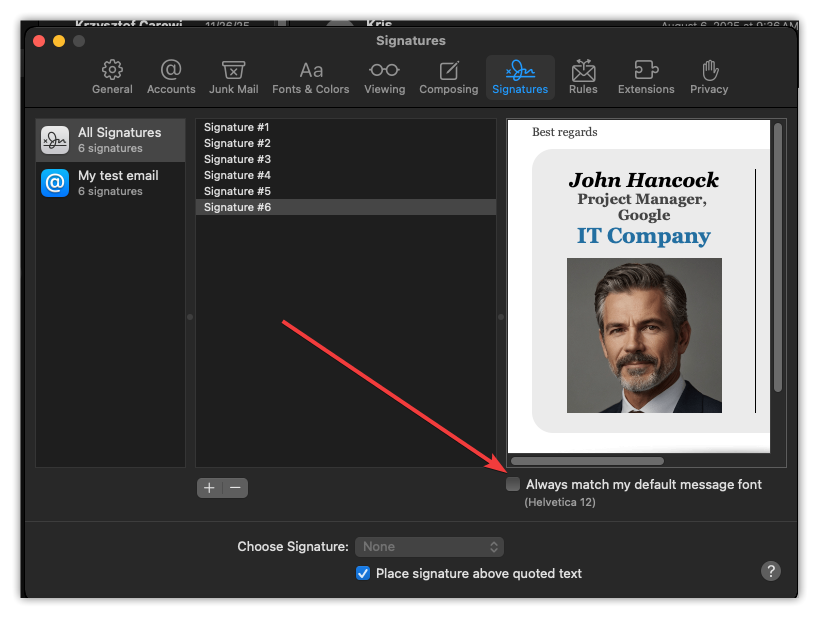
Apple Mail (macOS)
Apple Mail is clean, but its signature panel strips HTML if you paste it directly. You need to disable the 'Always match my default message font' checkbox before pasting the signature.
Open Mail → Settings → Signatures. Create a new signature and paste it into the box. Apple Mail usually keeps the formatting. Send yourself a test email anyway; it’s worth it.
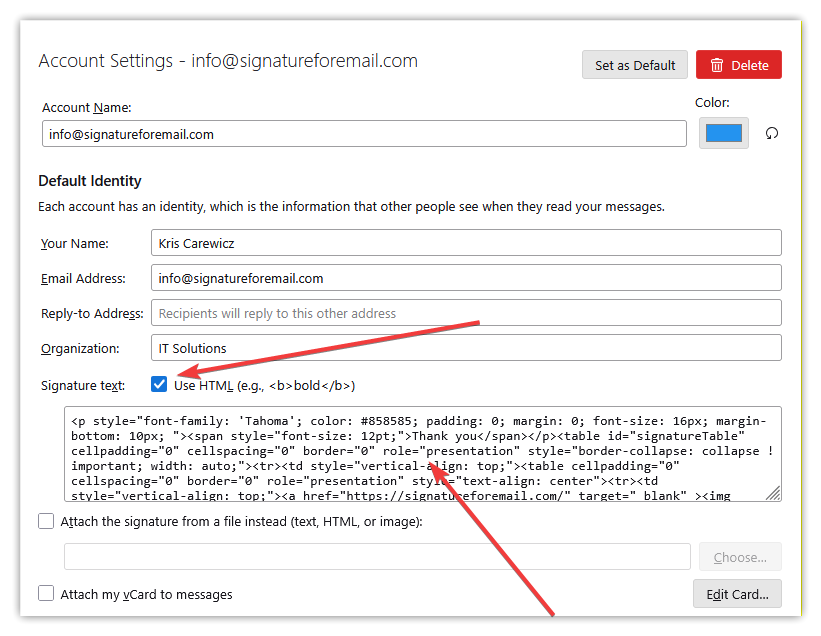
Thunderbird
Thunderbird has always been friendly toward HTML.
In Account Settings, find “Signature text.” There’s a small checkbox labelled “Use HTML.” Turn it on. Then paste your HTML directly. Thunderbird won’t fight you the way some other clients do.
It’s one of the best options if you rely on more advanced styling.
iPhone (iOS Mail App)
iPhones make signatures less obvious because the editor is bare-bones. You can’t paste raw HTML code directly—it will simply show the raw text. The solution is to paste the rendered version of your signature from the email signature website.
Go to Settings → Mail → Signature. Delete what’s there and paste the signature you copied. iOS strips some formatting when pasting, so after pasting, shake your phone and choose “Undo” to restore the formatting. Strange trick, but it works.
After that, send a test email from your iPhone to check spacing and image loading.
A Few Things That Help Everywhere
- HTML signatures behave a bit like plants—they’ll usually grow nicely, but a few things make them healthier.
- Host your images online instead of embedding them. Embedded images often turn into attachments, and nobody enjoys seeing a random “image001.jpg” in their inbox.
- Keep the width modest. Most signatures look best around 600 pixels or less.
- Avoid huge fonts or oversized icons. What looks fine in a big editor can look loud in someone else’s phone. Email apps love to shrink things, so aim for balance.
- And always, always send test emails to yourself before rolling it out for clients or your team.
A good signature doesn’t announce itself. It just sits there quietly, doing its job every single time you send an email. Once you set it up in each app, you won’t think about it again—until someone replies and compliments how clean it looks.